Gator Features#
🔹 Core Capabilities#
Create from templates (Python 3, R, custom)
Clone existing environments
Import from YAML files
Export to share across systems
Remove (with protection for base/default)
Search and filter thousands of packages
Pin specific versions
Update single or all packages
View dependency graphs
Filter by channel (conda-forge, defaults, etc.)
🔹 Power User Tips#
💡 Speed Up Your Workflow
Search Like a Pro
Use the package search bar for instant filtering
Search works on package names
Results sorted by relevance (matches at start of name appear first)
Smart Filtering
Click the filter icon to access status filters
Filter by channel to see only conda-forge packages
Use “Updatable” filter to quickly find packages needing updates
Batch Operations
Select multiple packages in batch mode
Click “Update All” when you see the button enabled
Use export/import to clone environments faster than manual copying
🎯 Pro Tips
Performance
Enable background caching for faster startup
First load builds cache—be patient!
Organization
Use descriptive environment names (
project-ml-v2notenv1)Export environments regularly as backups
🔹 Extension Settings#
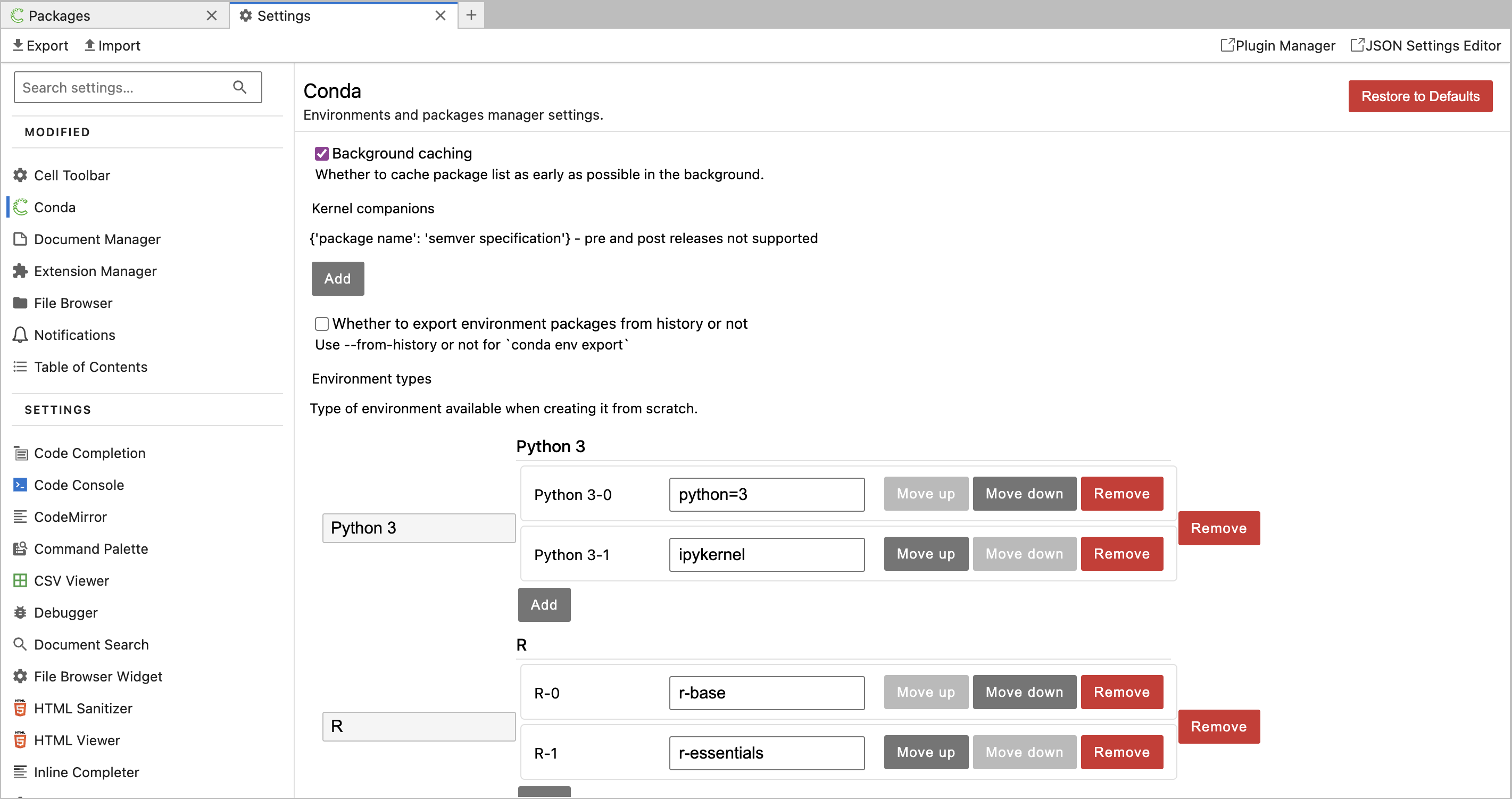
Gator provides several configurable settings accessible through Settings → Settings Editor → Conda:
Background Caching#
Purpose: Controls whether package lists are cached in the background for improved performance
Default: Enabled
Note: First-time package list loading may take time, but subsequent loads are faster with caching enabled
Kernel Companions#
Purpose: Define package dependencies that should be installed alongside kernel packages
Format: JSON object mapping package names to semantic version specifications
Default: Empty object
Export from History#
Purpose: Controls whether environment exports use
--from-historyflagDefault: Disabled
Note: When enabled, exports only packages explicitly installed by the user
Environment Types#
Purpose: Defines predefined environment templates available when creating new environments
Default:
“Python 3”: Includes
python=3andipykernel“R”: Includes
r-baseandr-essentials
Customization: Users can add custom environment types with their own package lists
Kernel Whitelist#
Purpose: Restricts environment list to only show environments corresponding to whitelisted kernels
Default: Disabled (shows all environments)
Direct Package Actions#
Purpose: Controls whether package version changes apply immediately or are batched
Default: Enabled (direct mode)
Behavior:
Direct mode: Selecting a package version immediately triggers install/update
Batch mode: Changes are queued and applied together via an “Apply” button
🔹 UI Components for Environment Actions#
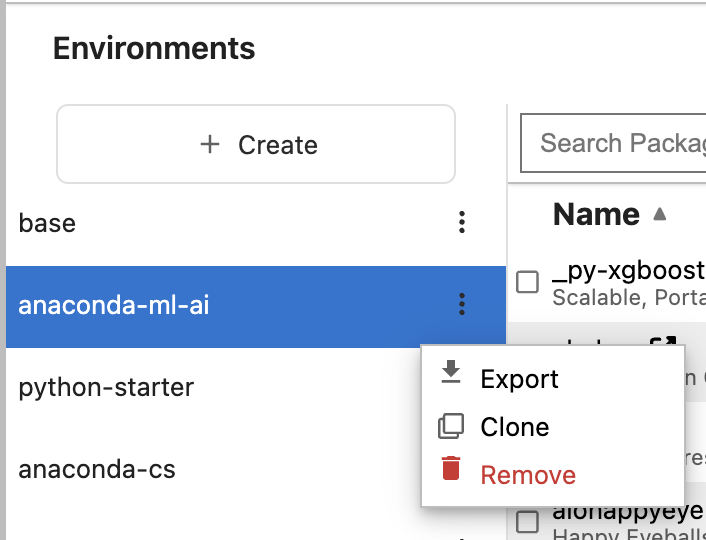
Environment List Panel#
The left sidebar displays all available conda/mamba environments. Each environment item shows:
Environment name
Visual indicator for the currently selected environment
Context menu (kebab icon) for environment actions
Create Environment Button#
Located at the top of the environment list, this button opens the environment creation workflow.
Create Environment Drawer#
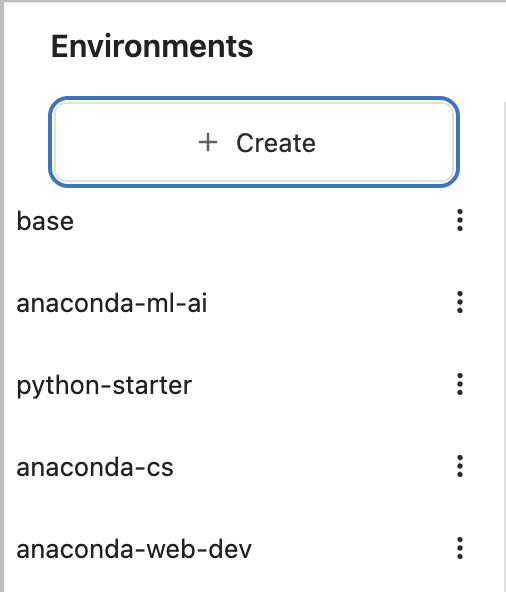
A full-screen modal interface for creating new environments with the following sections:
Environment Details:
Environment name input field
Environment type selector (e.g., “Python 3”, “R”, or custom types)
Python version selector (when applicable)
Package Selection:
Search bar for finding packages
Package list with checkboxes and version selectors
Sortable columns (name, channel)
Side panel showing selected packages with ability to remove individual selections
Actions:
Cancel button to close without creating
Create button to finalize environment creation
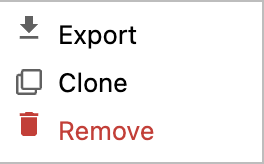
Environment Context Menu#
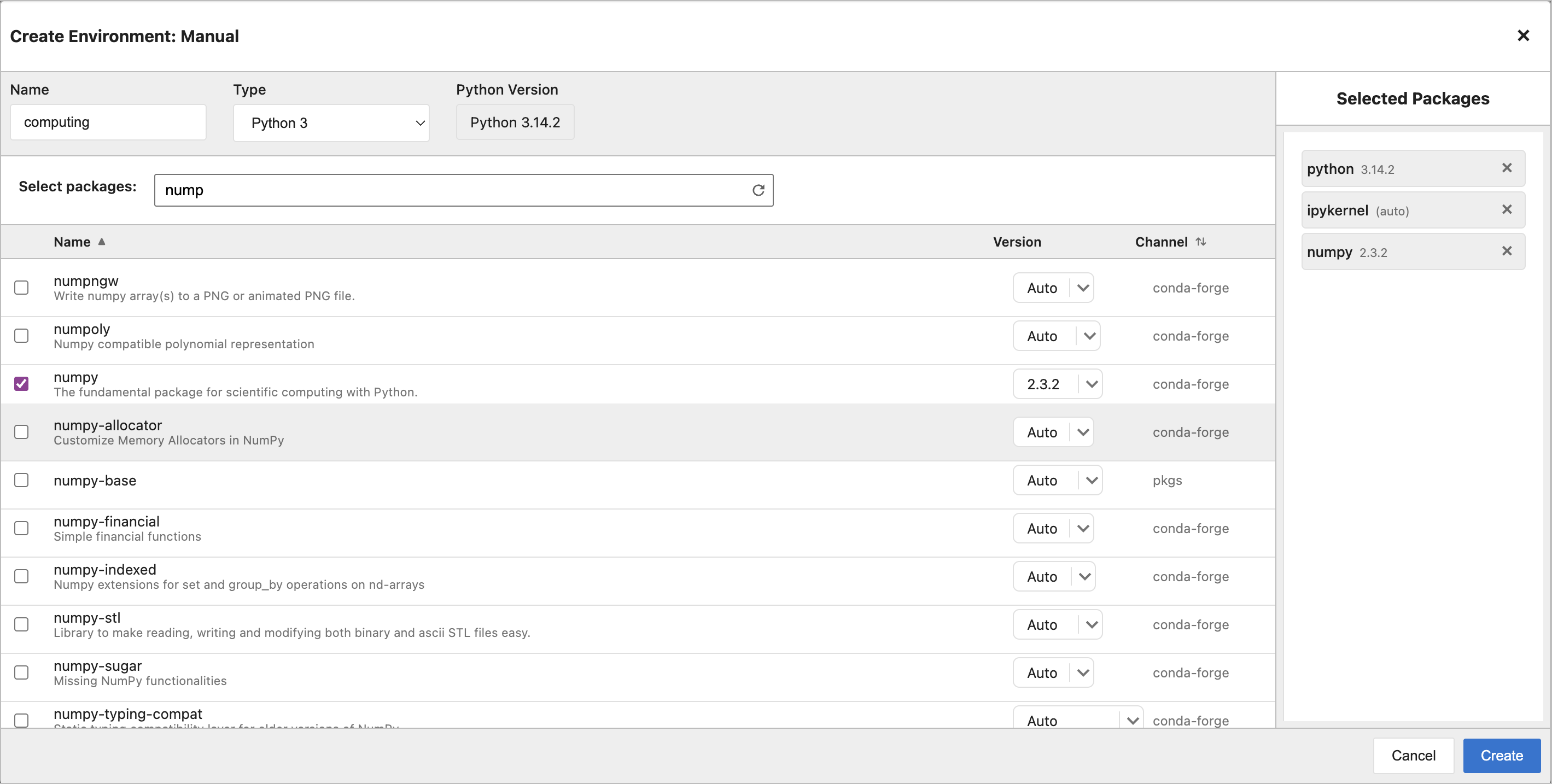
Each environment item includes a context menu (accessible via kebab icon) with options:
Clone: Create a copy of the environment with a new name
Export: Export environment to a YAML file
Remove: Delete the environment (disabled for base and default environments)
Important
Protected Environments
The base environment and your default JupyterLab environment cannot be removed. This prevents accidentally breaking your Gator/JupyterLab installation.
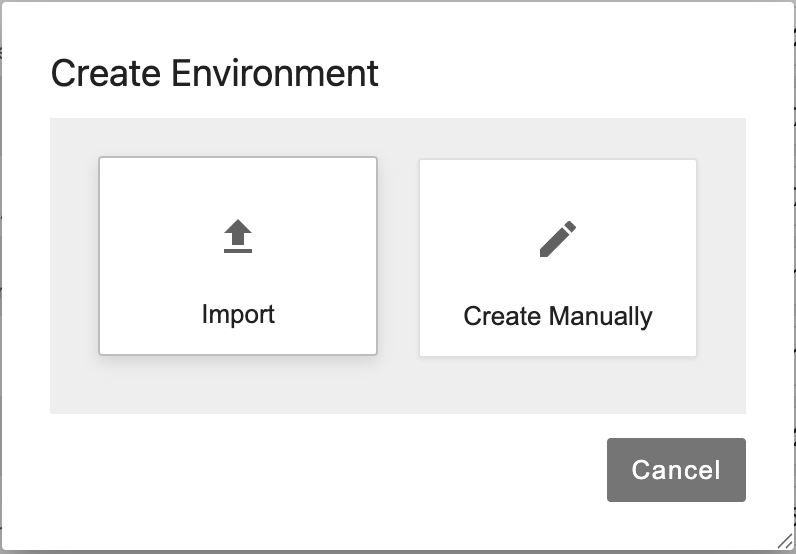
Environment Creation Dialog#
Initial dialog that appears when creating an environment, offering choices:
Import: Import environment from a YAML file
Create Manually: Open the full Create Environment drawer
🔹 Import and Export Environments#
Gator allows you to share environment configurations across systems using YAML files.
Exporting an Environment#
Export an environment to save its package configuration:
Click the kebab menu (⋮) next to the environment name
Select Export
The environment YAML file will be downloaded to your default downloads folder
Export Options
The export behavior depends on your extension settings:
Setting |
Behavior |
Use When |
|---|---|---|
Export from History: Disabled (default) |
Exports all packages including dependencies |
You want a complete snapshot |
Export from History: Enabled |
Exports only explicitly installed packages |
You want a minimal, reproducible spec |
Example exported YAML:
name: myenv
channels:
  - conda-forge
  - defaults
dependencies:
  - python=3.11
  - numpy=1.24
  - pandas=2.0
  - ipykernel
Importing an Environment#
Create a new environment from an exported YAML file:
Click the Create Environment button
Select Import in the dialog
Click Choose File and select your YAML file
Review the environment name and packages
Click Import to create the environment
Note
The environment name from the YAML file will be used. If an environment with that name already exists, you’ll be prompted to choose a different name.
Common Use Cases#
Share your environment with teammates:
Export your working environment
Commit the YAML to git
Team imports to match your setup
Everyone has identical package versions!
Before major changes:
Export current environment
Make experimental changes
If something breaks → import the backup
Back to working state instantly!
Sync across your computers:
Export from laptop
Transfer YAML file
Import on desktop
Same environment everywhere!
Warning
Some packages are platform-specific. Consider separate YAML files for Linux/macOS/Windows.
For publications and reports:
Enable “Export from History” in settings
Export minimal environment spec
Archive with your code/paper
Others can reproduce your exact setup
🔹 UI Components for Package Actions#
Package Panel#
The main panel displays packages for the currently selected environment. It includes:
Package Toolbar:
Search bar for filtering packages by name
Filter button with badge showing active filter count
“Add Packages” button to open the package installation drawer
“Update All” button (enabled when updatable packages are available)
Direct/Batch mode toggle button
Selection count indicator (when packages are selected)
Action buttons (Update, Remove, Clear) when in batch mode with selections

Direct/Batch Mode Toggle#
Important
Choose Your Workflow!
The mode toggle button controls how Gator handles package operations. Pick the right mode for your task.
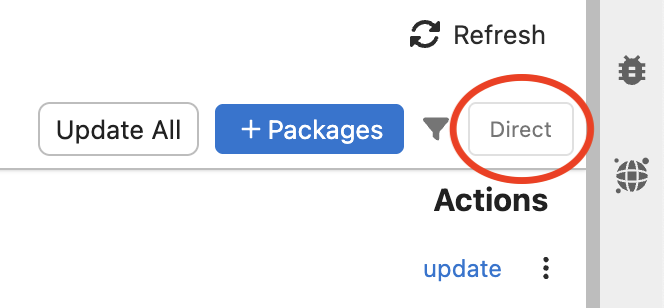
When to use:
Quick single-package updates
Trying out package versions
Exploratory work
How it works: Changes apply immediately when you select a version
When to use:
Multiple related changes
Complex environment setup
Want to review before applying
How it works: Queue multiple changes, click “Apply” to execute all at once
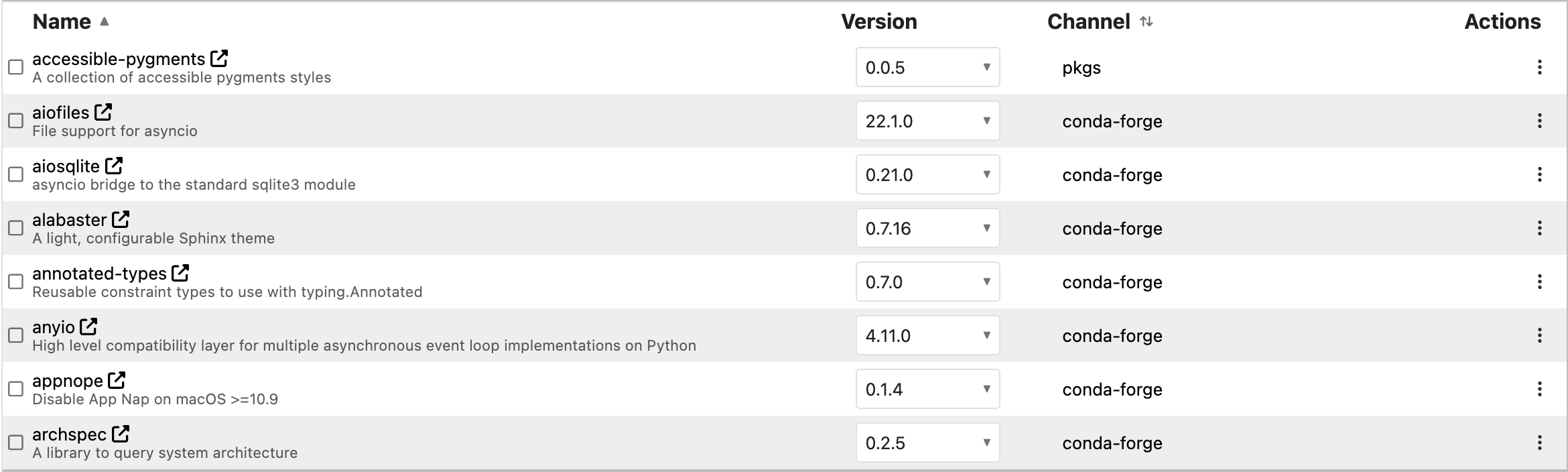
Package List#
A scrollable, sortable table displaying packages with columns:
Name: Package name with optional summary/description
Version: Dropdown selector for choosing package version
Channel: Source channel for the package
Status indicators: Visual cues for updatable packages
Context menu: Kebab icon for individual package actions (Update, Remove)
Package Filters:
Installed: Shows only packages currently installed in the environment
Updatable: Shows packages with available updates
Selected: Shows packages with pending changes (batch mode)
Channel filters: Filter by specific conda channels
Preview Package Changes#
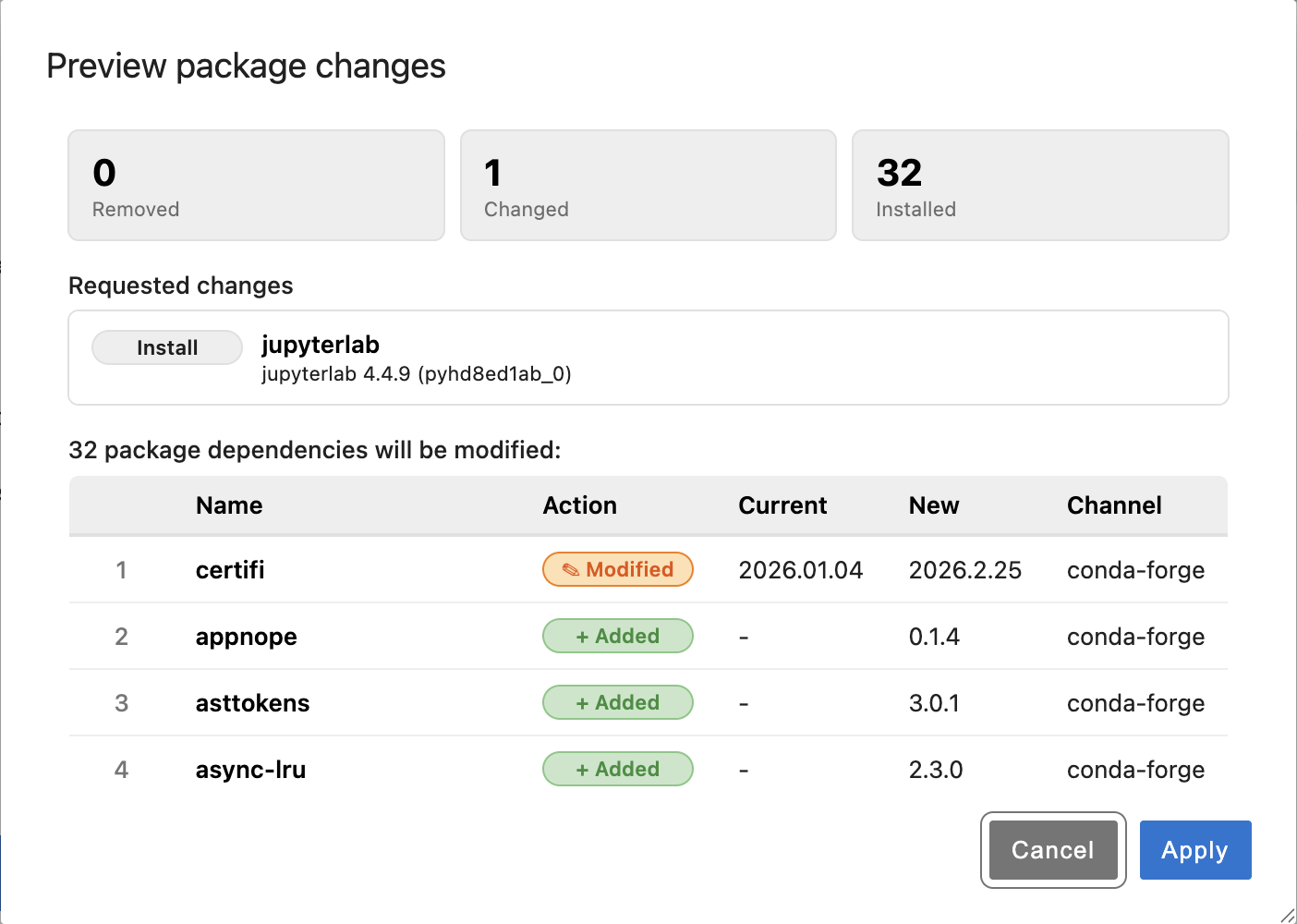
When applying changes, users see a pop-up dialog that provides a summary of the side effects on packages in an environment based on the requested changes. If there are no additional changes to packages in the environment other than the requested changes, the dialog is not displayed. The preview dialog provides a summary count of packages removed, installed, and changed, as well as a section showing the requested package changes followed by a list of changes to additional packages, with more details about those changes. Based on the preview, users can continue to apply the changes or cancel the operation.
Add Packages Drawer#
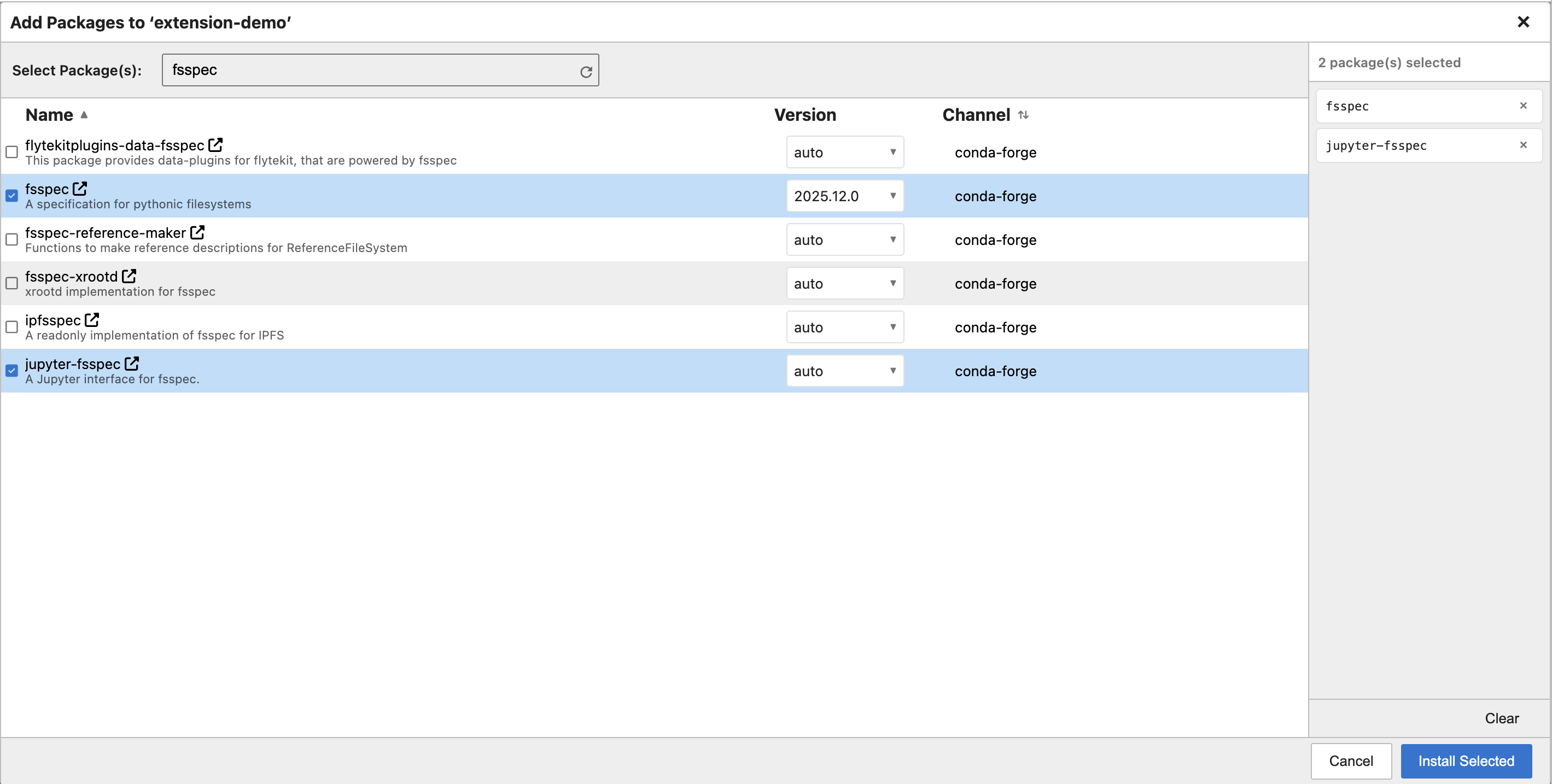
A full-screen modal for browsing and installing multiple packages:
Main Content Area:
Search bar for finding packages
Package list with checkboxes and version selectors
Intelligent search sorting (matches at start of name appear first)
Selection Panel:
Side panel showing selected packages
Ability to remove individual packages from selection
Clear button to remove all selections
Actions:
Cancel button to close without installing
Install Selected button to install all selected packages
Package Dependencies Graph#
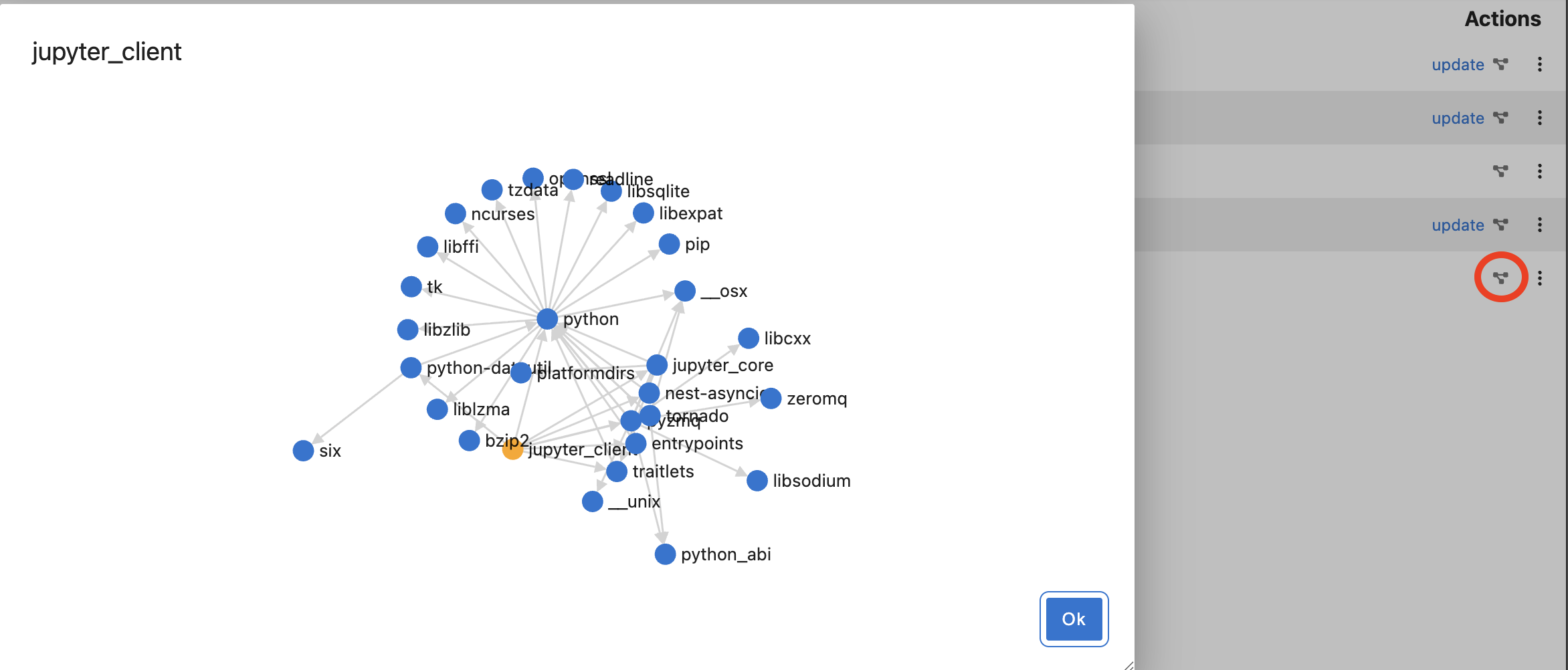
A dialog that displays the dependency graph for a selected package, showing:
Package dependencies
Dependent packages
Visual representation of relationships
Package Context Menu#
Individual packages have a context menu (accessible via kebab icon) with options:
Update: Update the package to the latest version
Remove: Uninstall the package from the environment

Filter Popover#
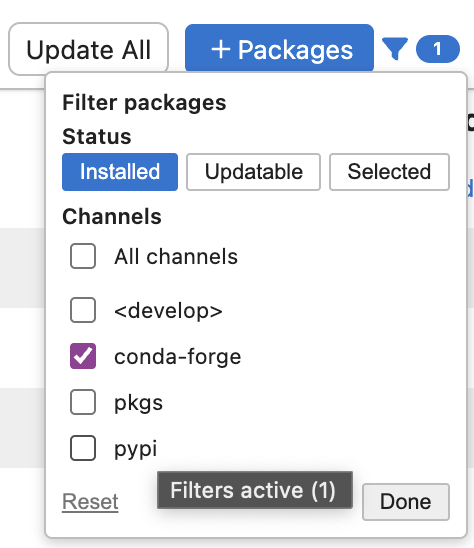
A dropdown panel accessible via the filter button, providing:
Status filter pills (Installed, Updatable, Selected)
Channel checkboxes for filtering by channel
Reset button to clear all filters
Active filter count badge
🔹 Troubleshooting#
Problem: Package list takes forever to load
Solutions:
First load builds the cache—this is normal and only happens once
Enable “Background Caching” in settings
Close and reopen after first load to see cached performance
Check your internet connection
Problem: Remove option is disabled
Reason: Base and default environments are protected
Solution: Create a new environment instead, or clone and modify
Problem: YAML import shows errors
Possible causes:
Platform-specific packages (Linux vs macOS vs Windows)
Channel not accessible
Package versions no longer available
Try:
Remove platform-specific packages from YAML
Update version specs to be more flexible
Check channel configuration
Problem: “Solving environment” takes very long
Solutions:
Use mamba instead of conda (faster solver)
Specify fewer package constraints
Try different channels
Create fresh environment if heavily modified